As a learning designer, I’ve worked with principles that help people absorb knowledge more effectively. In the past few years, as I’ve experimented with GenAI prompting in many ways, I’ve noticed that many of those same principles transfer surprisingly well.
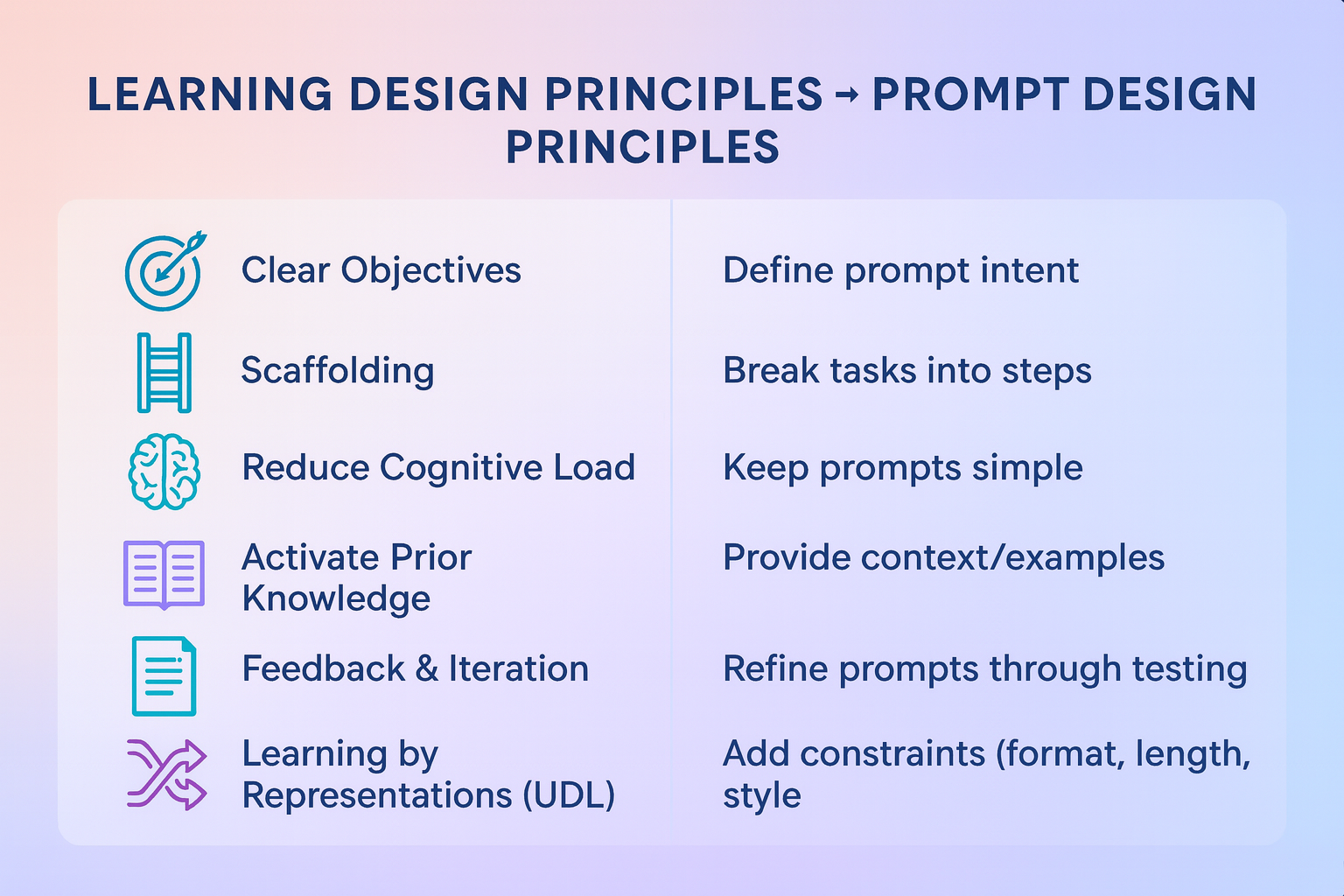
I mapped a few side by side, and the parallels are striking. For example, just as we scaffold learning for students, we can scaffold prompts for AI.
Here’s a snapshot of the framework:
The parallels are striking:
Clear objectives → Define prompt intent
Scaffolding → Break tasks into steps
Reduce cognitive load → Keep prompts simple
And more…
Instructional design and prompt design share more than I expected. Which of these parallels resonates most with your work?
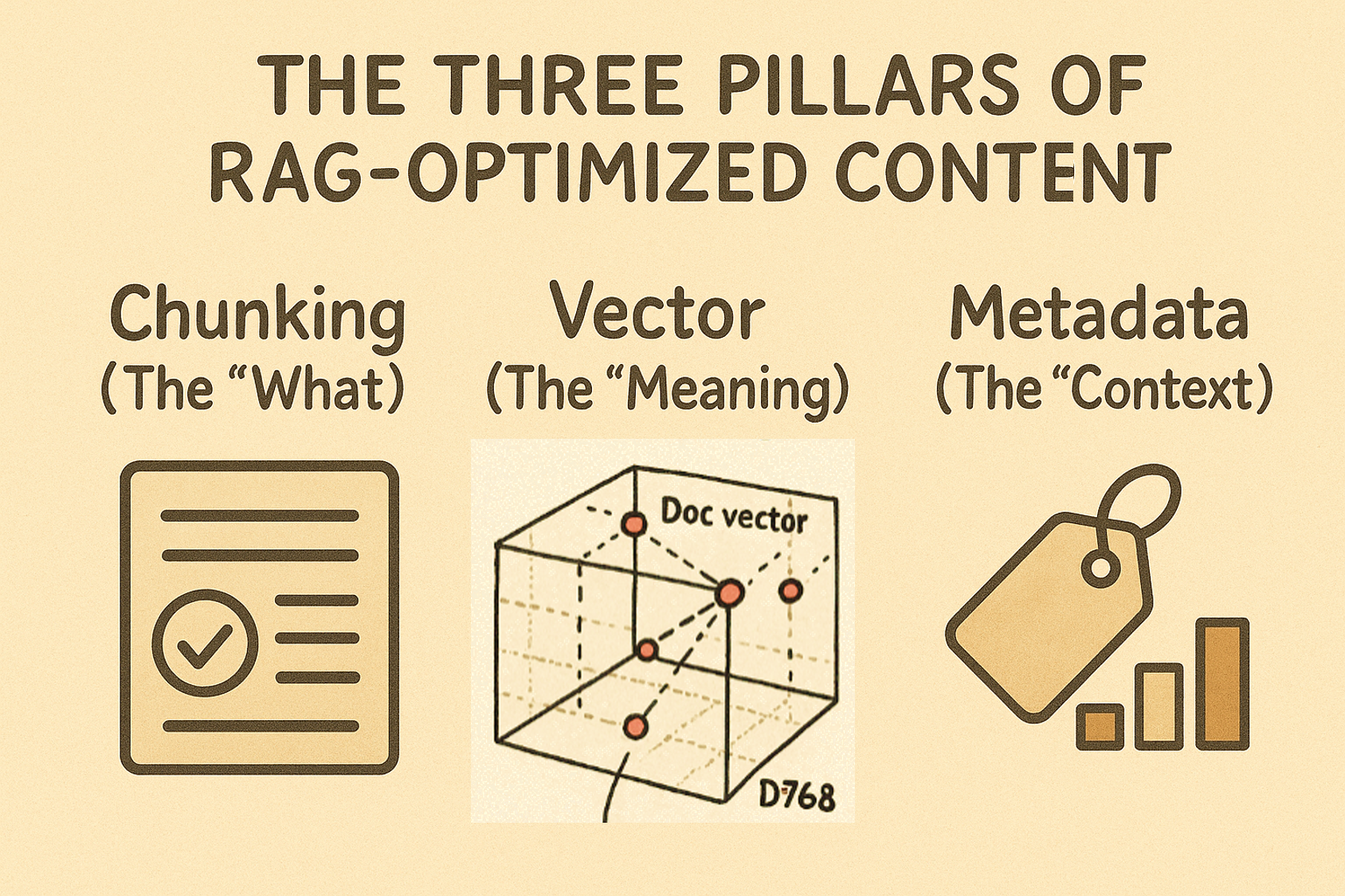
But I didn’t dive deep into the third pillar that makes RAG truly powerful: metadata. While chunking handles the “what” of your content and embeddings capture the “meaning,” metadata provides the essential “context” that transforms good retrieval into precise, relevant results.
The Three Pillars of RAG-Optimized Content
Chunking (The “What”): Breaks content into digestible, topic-focused pieces
Structured formats with clear headings
Single-topic chunks
Consistent templates
Vector Embeddings (The “Meaning”): Captures semantic understanding
Question-format headings
Conversational language
Semantic similarity matching
Metadata (The “Context”): Provides situational relevance
Article type and intended audience
Skill level and role requirements
Date, version, and related topics
To understand why richer metadata can provide better context, we need to understand how vector embeddings are stored in vector database. After all, when RAG compare and retrieve chunks, it searches inside of the vector database to find semantic match.
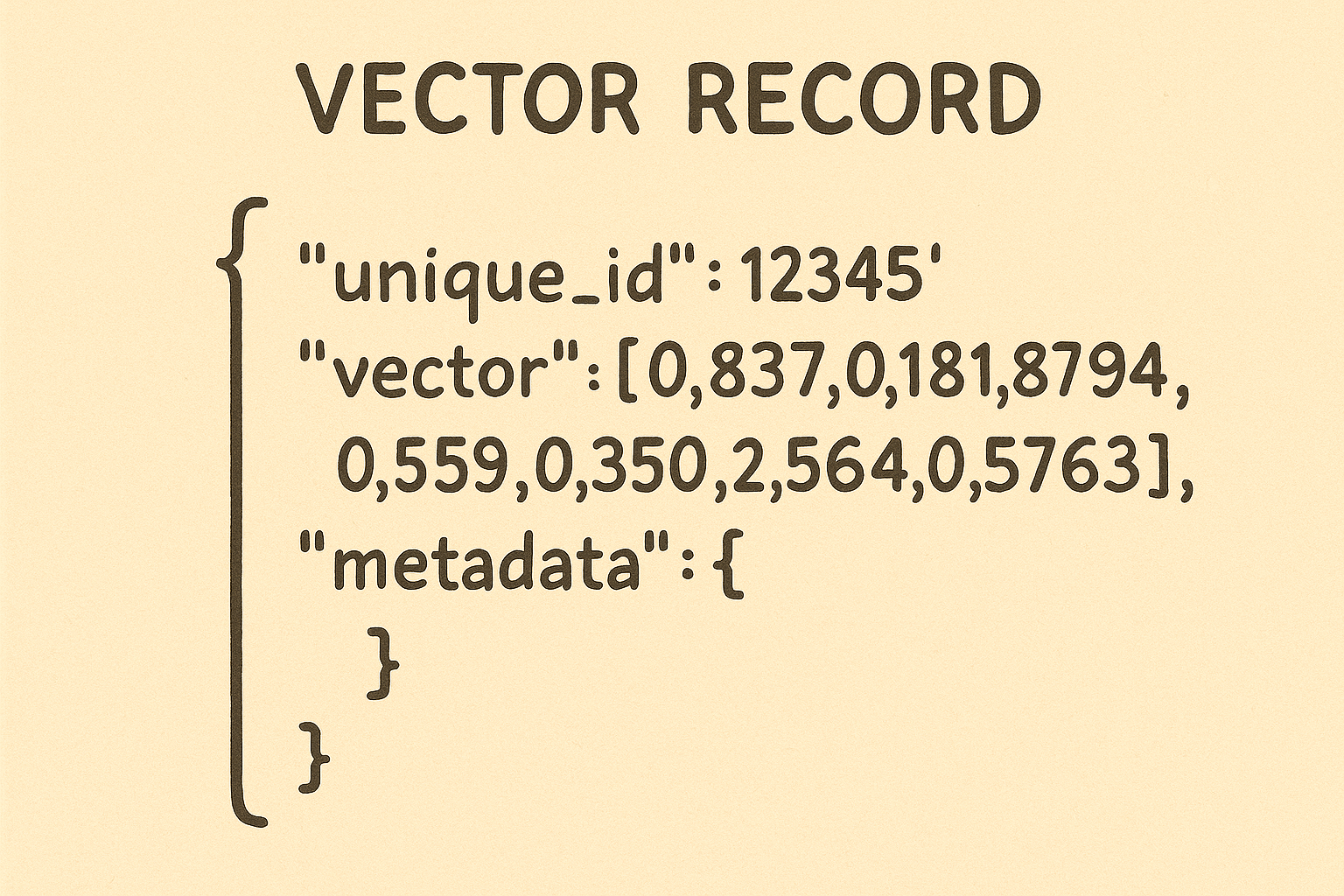
So, what a vector record (the data entry) in a vector database looks like?
What’s Inside a Vector Record?
A vector record has three parts:
1. Unique ID A label that helps you quickly find the original content, which is stored separately.
2. The Vector A list of numbers that represents your content’s meaning (like a mathematical “fingerprint”). For example, text might become a list of 768 numbers.
Key rule: All vectors in the same collection must have the same length – you can’t mix different sizes.
3. Metadata Extra tags that add context, including:
How RAG Search Combines Vector Matching with Metadata Filtering
RAG (Retrieval-Augmented Generation) search combines vector similarity with metadata filtering to make your results both relevant and contextually appropriate. The RAG framework was first introduced by researchers at Meta in 2020 (see the original paper)::
Vector Similarity Matching When you ask a question, the system converts your question into a vector embedding (that same list of numbers we discussed). Then it searches the database for content vectors that are mathematically similar to your question vector. Think of it like finding documents that “mean” similar things to what you’re asking about.
Metadata Context Enhancement The system enhances similarity matching by also considering metadata context. These metadata filters can be set by users (when they specify requirements) or automatically by the system (based on context clues in the query). The system considers:
Time relevance: “Only show me recent information from 2023 or later”
Source credibility: “Only include content from verified authors or trusted platforms”
Content type: “Focus on technical documentation, not blog posts”
Geographic relevance: “Prioritize information relevant to my location”
This combined approach is also more efficient – metadata filtering can quickly eliminate irrelevant content before expensive similarity calculations.
The Combined Power Instead of getting thousands of somewhat-related results, you get a curated set of content that is both:
Semantically similar (the vector embeddings match your question’s meaning)
Contextually appropriate (the metadata ensures it meets your specific requirements)
For example, when you ask “How do I optimize database performance?” the system finds semantically similar content, then prioritizes results that match your context – returning recent technical articles by database experts while filtering out outdated blog posts or marketing content. You get the authoritative, current information you need.
What This Means for Content Creators
Understanding how metadata works in RAG systems reveals a crucial opportunity for content creators. Among the three types of metadata stored in vector databases, only one is truly under your control:
Automatically Generated Metadata:
Chunk metadata: Created during content processing (chunk size, position, relationships)
Platform metadata: Added by publishing systems (creation date, source URL, file type)
Creator-Controlled Metadata:
Universal metadata: The contextual information you can strategically add to improve intent alignment
This is where you can make the biggest impact. By enriching your content with universal metadata, you help RAG systems understand not just what your content says, but who it’s for and how it should be used:
When you provide this contextual metadata, you’re essentially helping RAG systems deliver your content to the right person, at the right time, for the right purpose. The technical foundation we’ve explored – vector similarity plus metadata filtering – becomes much more powerful when content creators take advantage of universal metadata to improve intent alignment.
Your content doesn’t just need to be semantically relevant; it needs to be contextually perfect. Universal metadata is how you achieve that precision.
So here is one response I think is very smart and I am pasting it here, just in case one day I am going to use it: “Mark -I know all those changes are a PITA, but I do hope you make it clear to the client that changes which aren’t your mistake are billable “client changes”.
Instructional design, like all other design work, sometimes is a customer service, and you really do want to make your customers happy. But sometimes we do have to set up the fine line, between “good customer service” and “unlimited service in the cost of harming ourselves”.
I believe many instructional designers have come across the same dilemma: sometimes it is just hard to find right images and video for the instructional materials. The content expert sent you a big word document with all the contents that s/he wants to put into the course. However the content is so abstract and it is hard to find good images to come with the content. Not to mention if you don’t have the budget to pay $2000 per year for a stock photo account.
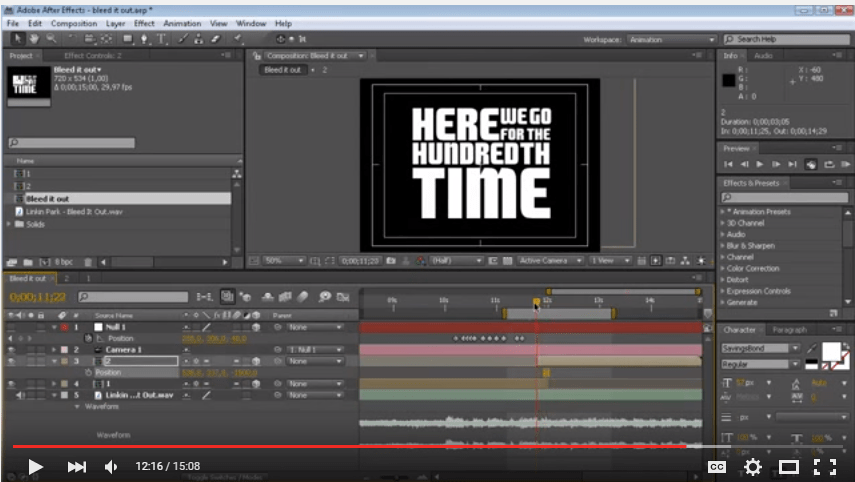
So I found Kinetic Typography can help. I started exploring ways to make Kinetic Typography videos two days ago. After downloading a couple of kinetic Typography templates and trying them out, I figured the best way to make a kinetic typography video is to start from the scratch. Because the animation of texts have to be so closely paired with their meaning, and the specific tune of your video, it is actually not worth the time to try to modify an existing kinetic typography template. Instead, it is probably more time efficient to start from scratch.
So I found this very good and detailed video tutorial:
When making presentations or developing websites, I feel it is very time consuming to find images under Creative Commons Licensed or from Public Domain. After spending hours of searching on Google with “Labeled for reuse”, pixabay and openclipart, I think I may contribute a little on creating your own Word Cloud Images.
The most frequently used website is wordle.net. I used it to create the School Data Analysis image below for one of my presentations. It is now shared to the public gallery so everyone can use it:
School Data Analysis
Wordle is easy and it is the very first app of its kind. However, when I tried to create a “Thank You” word cloud in different languages, the problems came:
Problem 1: Wordle doesn’t work well across different language. I used this page as the resources and typed in 25 types of “thank you” in different languages.
Unfortunately, Wordle wasn’t able to recognize all of them. Many of them showed up as blank squared blocks. I tried to set the font as “Chrysanthi Unicode” as instructed in this article, it didn’t work. Tried all other fonts, none of them worked for all languages.
Problem 2:
I wanted more than just a random piled words/phases in a meaningless shape. I wanted something more meaningful, something like this, but with the words of “Thank You” instead:
Picture retrieved at http://funzim.com/10-cool-facts-love/
Wordle doesn’t do this, at least for now.
So I googled and found this site:
http://www.tagxedo.com/app.html
I would say I am very satisfied with the outcome:
1. It was able to recognize all types of languages
2. It gives plenty of cool shapes to frame your words in.
There are more variations in Tagxedo. Try it yourself and you can create so many interesting word clouds with CC license for your own non-commercial presentation use.
Font awesome allows you to add html based icons to your website. The icons are vector so you don’t have to worry about it changes shape, gets blurry, etc. I am using it in the SLIDER curriculum website and it works great. I only had to install the font awesome module to the drupal site in order to use it!
I am making this SLIDER curriculum website for the NSF funded SLIDER project. For the registration form, one item is to choose state from a dropdown list. Obviously, I need to add all the 50 state abbreviations manually. I didn’t want to type in all 50 abbreviations one by one, so I tried to google to see if there is any ready to use list so that I can just copy and paste. Unfortunately, most google results show a table including both the state full names and then the abbreviations — this makes solely copying the abbreviations difficult. After flipping several pages of google results, I finally I found one. In order for more people like me to find it, here it is – they are in plain text so to be easily copy and paste.
AL
AK
AZ
AR
CA
CO
CT
DE
FL
GA
HI
ID
IL
IN
IA
KS
KY
LA
ME
MD
MA
MI
MN
MS
MO
MT
NE
NV
NH
NJ
NM
NY
NC
ND
OH
OK
OR
PA
RI
SC
SD
TN
TX
UT
VT
VA
WA
WV
WI
WY